Rooms and occupancy
The Rooms area gives you a real-time view of the facility’s occupancy: which rooms are free, occupied, reserved or under maintenance, how many beds remain available, and at what rate. From a room, you can also directly assign a resident, which opens their stay.
You’ll find it in the Nursing Home → Accommodation → Rooms application.
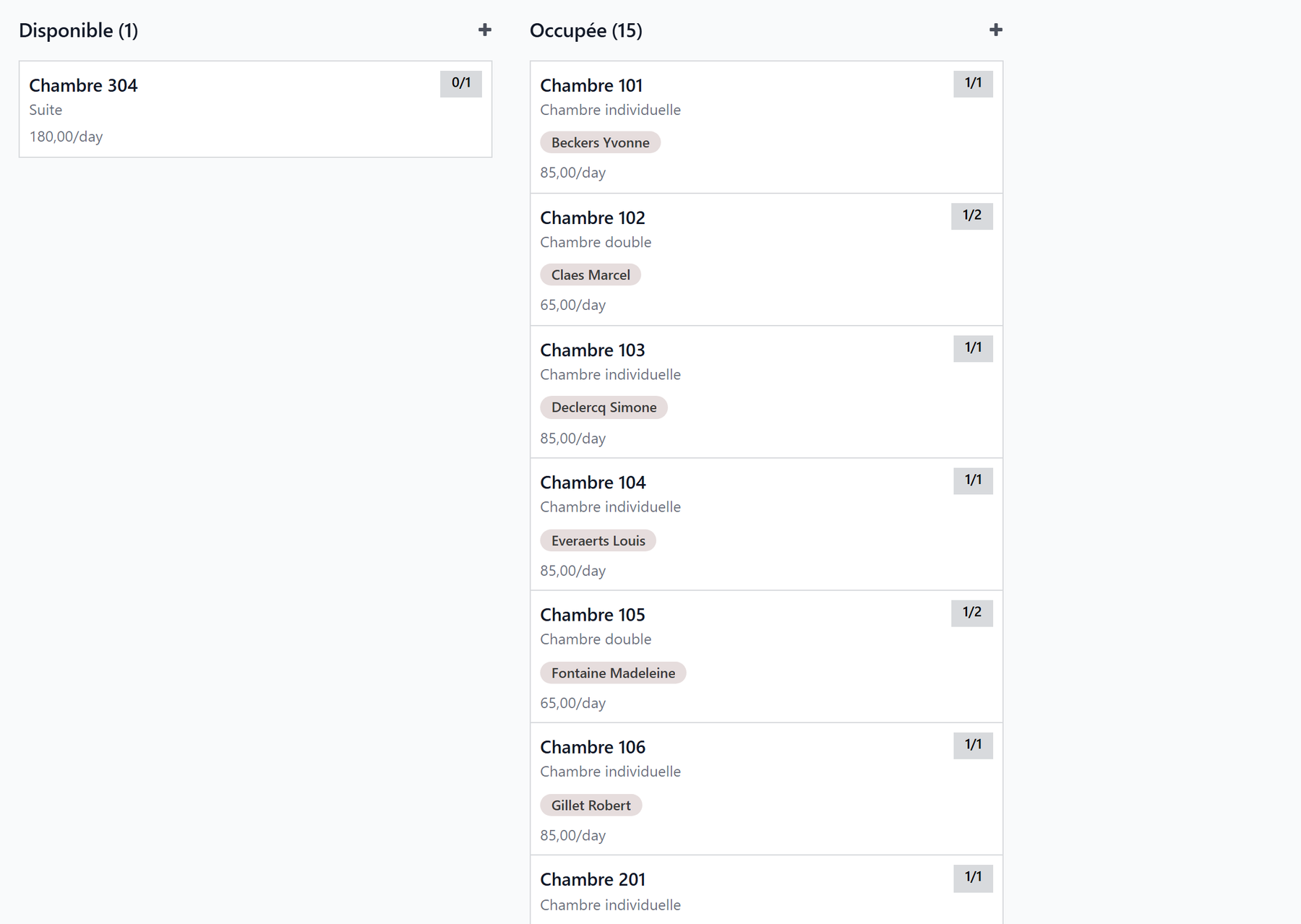
The occupancy board
On opening, the rooms are shown as a kanban, grouped by status: an Available column, an Occupied column, an Under maintenance column and a Reserved column. At a glance, you can see where space remains.
Each room card shows:
the room number;
an occupancy badge “occupied / capacity” (for example 1/1 or 1/2), colored by status — green (Available), blue (Occupied), orange (Maintenance), cyan (Reserved);
the room type;
the resident(s) present, if any;
the daily accommodation rate.
The occupancy / capacity badge
A capacity-2 room with only one bed taken shows 1/2 and stays Available: there is still a spot. It only switches to Occupied when all beds are taken. A single room (capacity 1) therefore goes straight from Available to Occupied as soon as the first resident arrives.
In the top right, you can switch from the kanban to the list (number, floor, type, capacity, occupancy, rate, amenities, status) or the form.
Filtering and grouping
The search bar offers quick filters: Available, Occupied, Maintenance, Reserved, as well as Active (excluding maintenance). You can also group rooms by Status, Floor, Type or Sector, and search by number, floor, building or sector.
The room record
Click a card to open the room record. At the top, a status bar shows the current state (Available → Occupied → Under maintenance → Reserved), and ribbons visually flag a room as “Maintenance” or “Reserved”.
Details and rate
Field |
Purpose |
|---|---|
Room Number |
Unique identifier of the room. |
Room Type |
Determines the daily rate and the default capacity. |
Floor / Building |
Physical location. |
Sector |
Sector / floor of the facility; used for grouping and access rights. |
Capacity |
Number of beds in the room. |
Current Occupancy |
Number of occupied beds (computed automatically). |
Daily Rate |
Accommodation price, taken from the room type. |
Billing Product |
Product linked to the room (read-only). |
The daily rate is not the care allowance
The daily rate is the accommodation price (the room), a value specific to your facility, set on the room type. It is distinct from the care allowance paid by the health insurer, which follows the country’s rules and the resident’s dependency category — not the room.
In Belgium
The care allowance is the INAMI dependency allowance: it is declared with the resident’s Katz category, and under the AViQ rates its amount is the same for every category — see The INAMI package.
Amenities
The Amenities section lists, as tags, what the room provides (Television, Wifi, Private bathroom, Medical bed, Nurse call, Balcony…). An Additional amenities notes field lets you add a free-text detail. The amenities catalog is managed in the settings (see Configuration).
Current occupancy and history
Three tabs complete the record:
Current Occupancy — the residents present in the room (name, resident code, age).
Stay History — all stays that involved this room, with the resident, the start and end dates, and the status (Draft, Confirmed, In Progress, Done).
Notes — free internal notes about the room.
Changing a room’s status
The Available / Occupied status is computed automatically from occupancy. You can, however, force a manual status from the record header:
Set Under Maintenance — the room switches to Under maintenance (works, deep cleaning, breakdown…) and is no longer offered for assignment.
Mark as Reserved — the room becomes Reserved (for example for an upcoming admission) and drops out of the available rooms.
Automatic Mode — cancels the manual override: the status is again computed automatically from occupancy.
Maintenance and Reserved block assignment
As long as a room is Under maintenance or Reserved, the Assign a Resident button is hidden and the room does not appear in the available-room lists (admission, transfer). Switch it back to Automatic Mode to make it assignable again.
graph LR
  A[Available] -->|a resident assigned| B[Occupied]
  B -->|all beds freed| A
  A -->|Set Under Maintenance| C[Under maintenance]
  A -->|Mark as Reserved| D[Reserved]
  C -->|Automatic Mode| A
  D -->|Automatic Mode| A
Assigning a resident from the room
You can open a stay directly from a free room, without going through the admission pipeline:
Open the record of an Available room (neither full, nor under maintenance, nor reserved — otherwise the button does not appear).
Click Assign a Resident.
In the wizard, choose the resident (only residents are offered).
Check the entry date (today by default) and, if needed, the planned end date.
The daily rate is taken from the room; adjust the Bill To field if the invoice must be addressed to a third party (a relative, a public welfare body).
Optionally add an admission reason, then click Assign a Resident.
Resthome then creates the stay on this room, in the In Progress state, and brings you back to the room record.
When the resident is already housed: the transfer
If the chosen resident already occupies a room, the wizard detects it and shows a transfer warning recalling their current room. The button then becomes Transfer the Resident. On confirmation, Resthome ends the old stay (reason: transfer) and opens a new stay in the chosen room.
Assign ≠ Change Room
Assigning an already-housed resident from the room performs a simple transfer. For a room change that cleanly splits the accommodation billing on the exact date while keeping the care allowance paid by the health insurer continuous, prefer the Change Room action on the stay — see Room change and transfer.
Configuring room types and amenities
The room structure is prepared in the configuration, via Nursing Home → Configuration → Rooms:
Room Types — define each type (single, double…), its daily rate, its default capacity and the associated billing product. A room’s rate derives from its type.
Room Amenities — maintain the catalog of available amenities (comfort, medical, technology, outdoor), which you then tick on each room record.
For the settings details, see Configuration.
Key takeaways
The occupancy board lives in Nursing Home → Accommodation → Rooms, as a kanban grouped by status (Available, Occupied, Under maintenance, Reserved).
Each card’s badge shows the occupancy “occupied / capacity” and its color reflects the status; a shared room stays Available as long as one bed is free.
The Set Under Maintenance / Mark as Reserved buttons force a status; Automatic Mode restores automatic computation.
A room under maintenance or reserved is not assignable.
Assign a Resident from the room creates the stay; if the resident is already housed, the operation becomes a transfer.
The daily rate is the accommodation price specific to the facility (per room type), not to be confused with the care allowance paid by the health insurer.