Setting up a day care centre
A day care centre needs five things before its first user: its approval, its opening days, a day room, the amounts of the CSJ forfait and its own day price.
1. Record the CSJ approval
A day care centre has its own INAMI number — one starting with 755 to 758, ending in 000 — and Resthome records it on an establishment of its own, with its eHealth certificate. See eHealth and eFact settings.
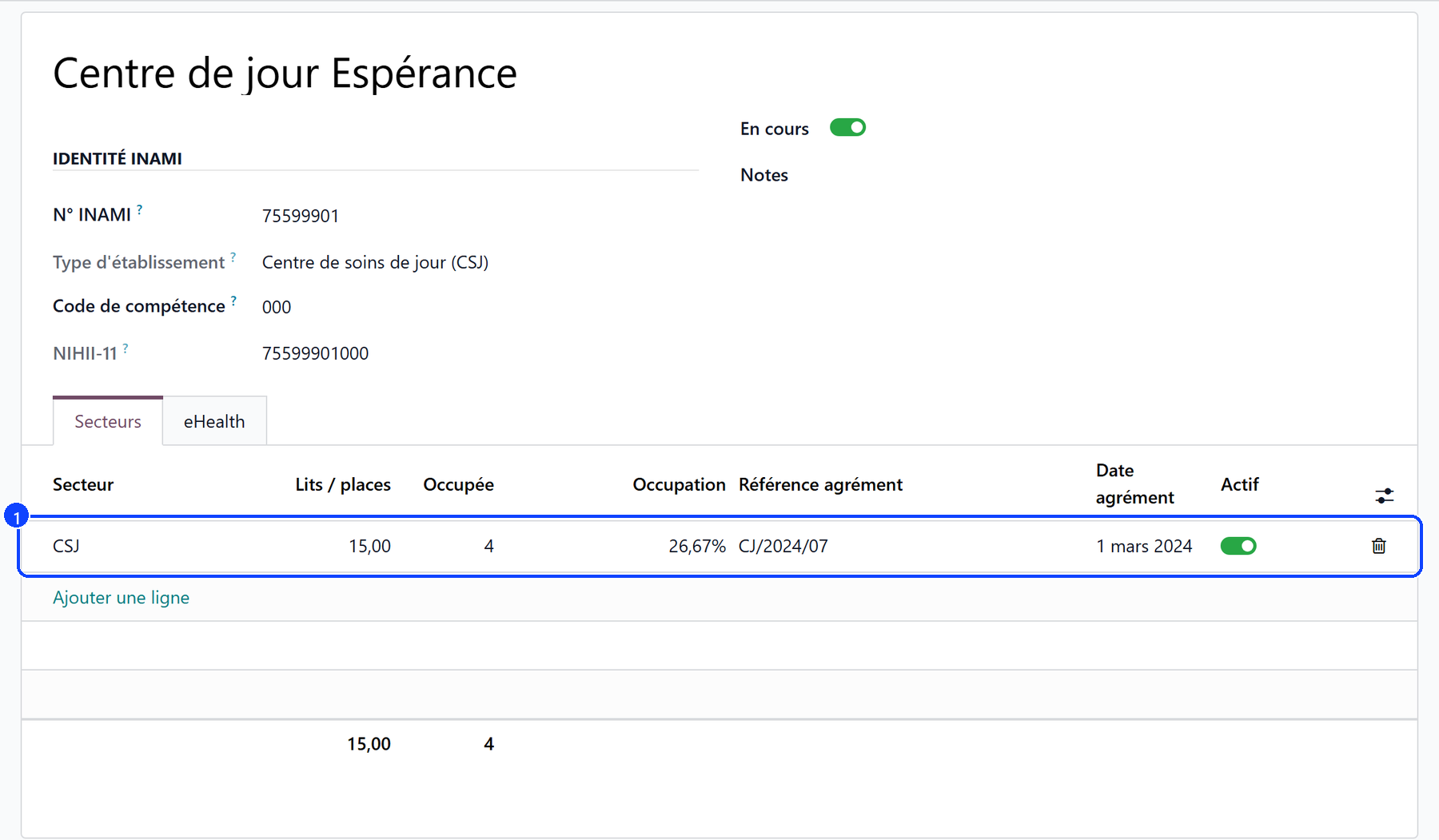
Go to Settings → Approvals → Manage establishments and approvals and create the establishment of the day care centre: its name and its INAMI number. Resthome reads the type from the number.
Under its Sectors tab, add a line with CSJ as sector and the number of places it covers under Beds / places (1).
Open the line: the approval’s own form carries the reference, the date and the opening days below.
A house that runs a rest home as well keeps its MR and MRS approvals next to it, on the rest home’s own establishment: an admission is only offered the sectors the house is licensed for.
2. Set the opening days and hours
On the CSJ approval, the Opening days and hours section (2) says when the centre opens: the days from Monday to Sunday, Opens at and Closes at. It starts from Monday to Friday, 8:00 to 18:00 — the legal floor.
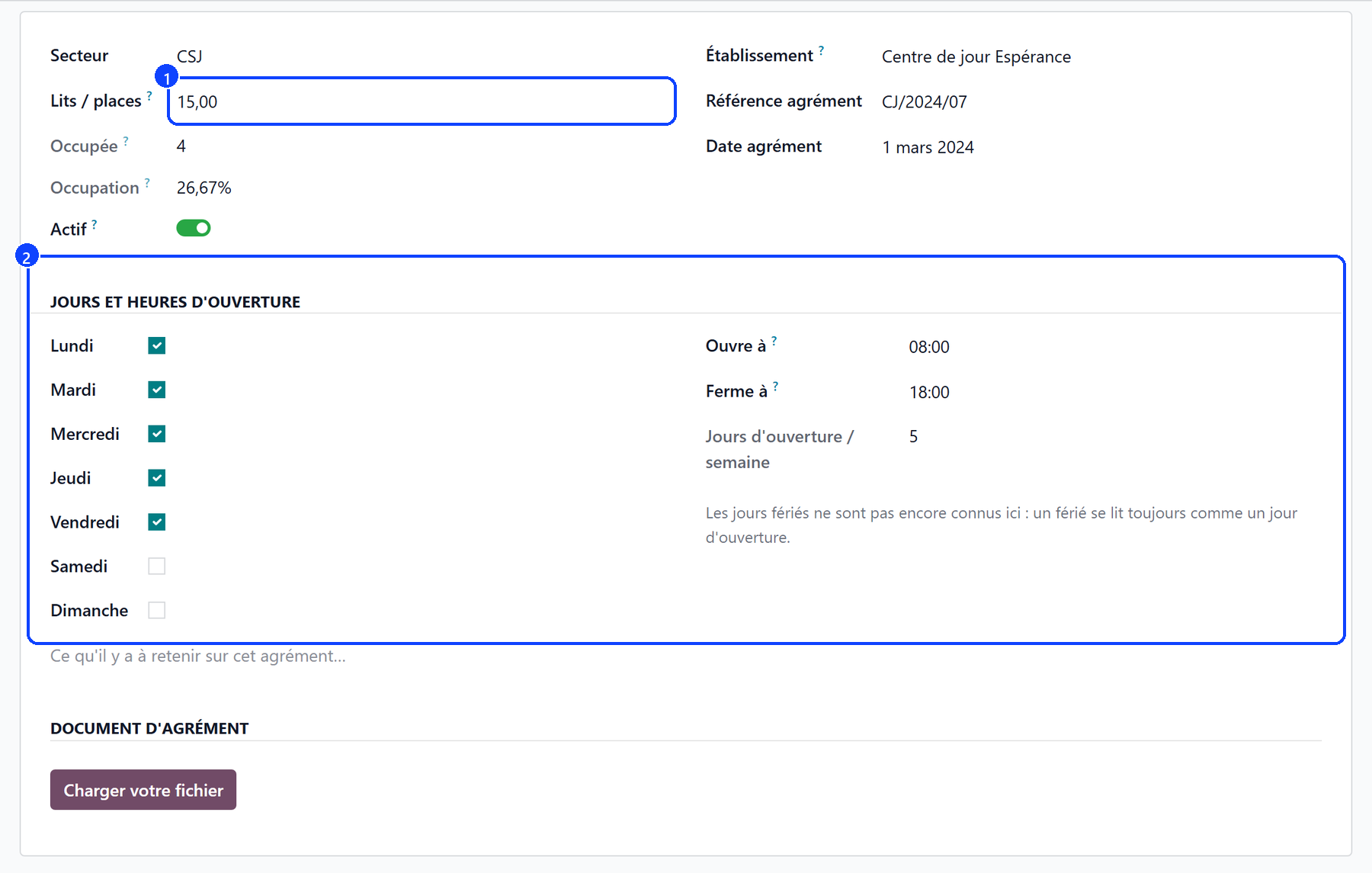
Open Days / Week counts the days ticked.
Below the Norm lights up under five days a week, or with a window narrower than 8:00–18:00. It is said, never blocked: what the centre opens is its own to declare.
Occupied and Occupancy count the users enrolled against the places: more users than places is normal for a day care centre — they do not all come the same day.
These days are read everywhere else: a day recorded in the register on a day the centre is closed is flagged Centre closed that day, and a user with no agreed days is expected on every day the centre opens.
Note
Public holidays are not known yet: a holiday still reads as an open day.
3. Create the day room
A day care user holds a day place, never a licensed bed.
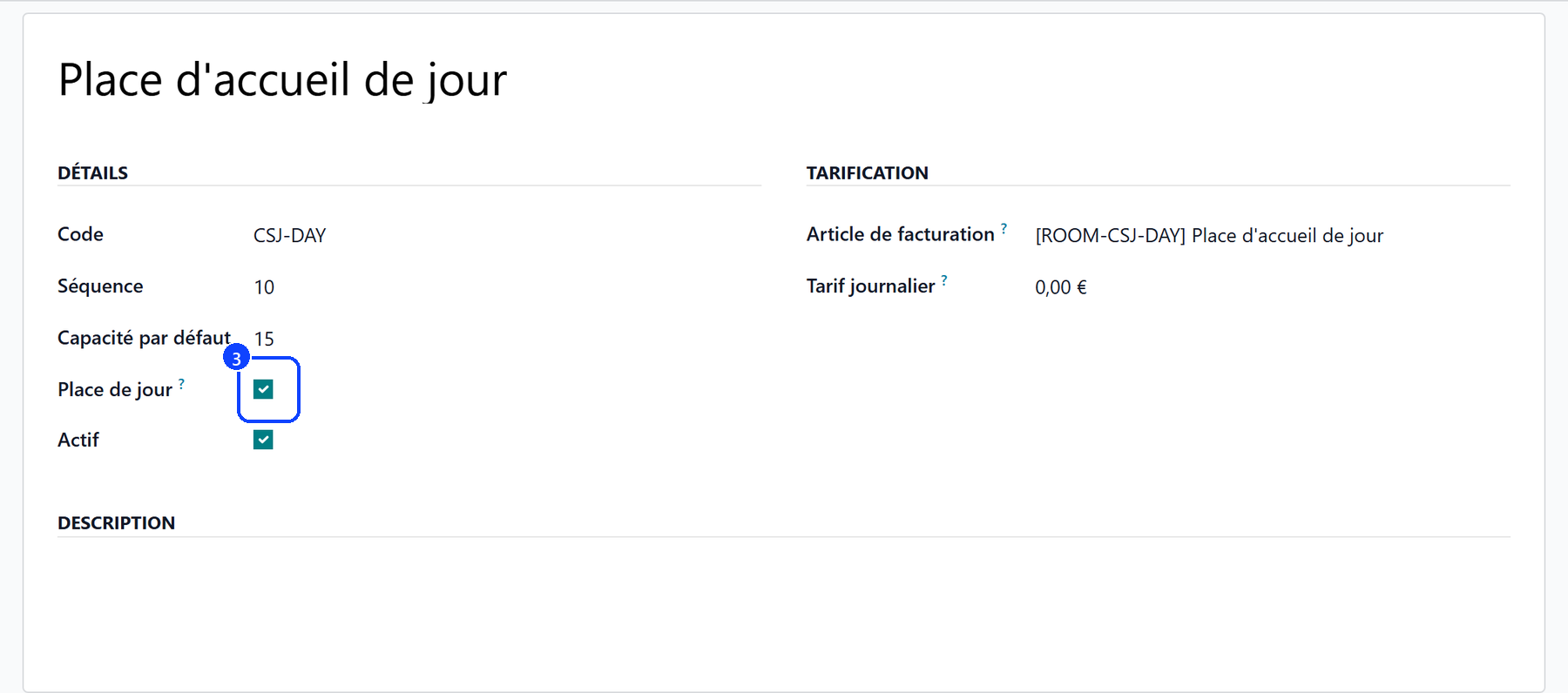
Under Configuration → Rooms → Room Types, create the type of the day room and tick Day Place (3). Its Daily Rate stays at 0.00: a place is not rented, the user pays the day price set in step 5.
Under Accommodation → Rooms, create the room with that type, and the number of places as its capacity.
From then on:
a day care stay only goes in a day place, and a residential stay never does;
every room picker offers day places to a day care stay, and beds to the others;
a day room reads « 15 day places » in the pickers, never « free beds »: the places are shared, and a centre enrols more users than it has places.
4. Fill in the CSJ rates
The health insurer pays a daily forfait per CSJ category. Under Billing → Configuration → INAMI Rates, the grid carries one row per CSJ category, each with its own pseudo-code:
Category |
Pseudo-code |
|---|---|
F |
126036 |
Fp |
126073 |
D |
126095 |
Fd |
126117 |
Enter the amount in force from its start date (4). The amount is the same for every category: the category declares the user’s profile to the insurer. The list opens on the current year: use the Currently valid filter to see the rates in force whatever year they started.

Warning
A rate left at 0.00 EUR bills no forfait. Resthome never sends a claim at zero: the month’s generation says which users were left without one, and why.
5. Set the centre’s day price
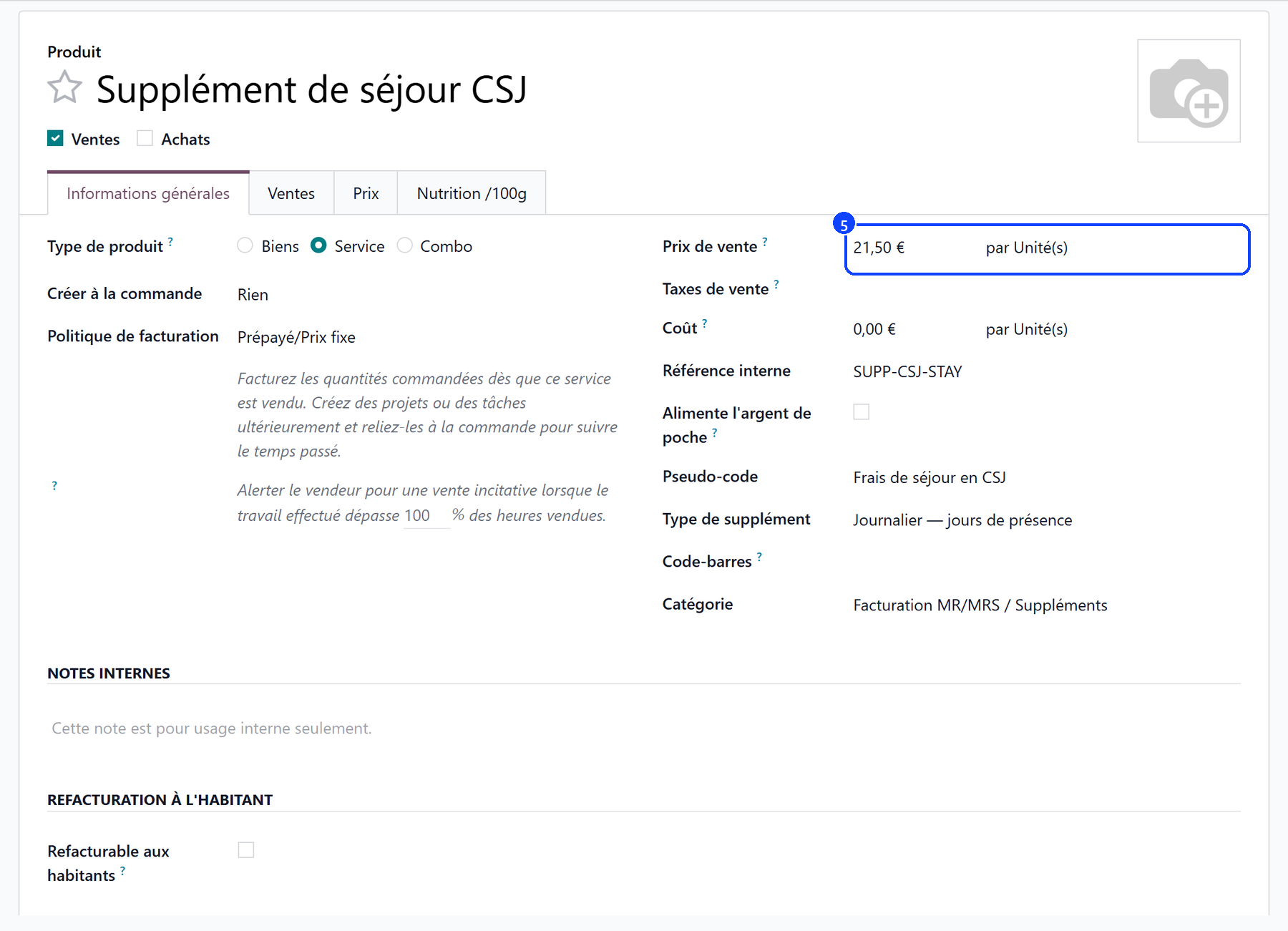
What the user pays is the centre’s day price: the product CSJ Stay Supplement (SUPP-CSJ-STAY), under Billing → Configuration → Supplement Types. Set its Sales Price (5).
Each user is subscribed automatically when their stay starts, from the admission day.
A user who follows the tariff follows its yearly indexation too.
A price agreed with one user goes on their convention, with Negotiated price ticked: the indexation then leaves it alone. See Supplements.
What’s next
Admitting a day care user — the stay, the days expected, the category, the agreement.
Recording attendance — the register of the day, and one day at a time.