The condition report (move-in and move-out)
The condition report records the state of a room and its equipment at a specific moment: when the resident moves in, and then when they move out. It is a legally binding joint assessment, signed by the resident (or their representative) and by the facility. You will find it in the Accommodation ▸ Condition reports menu.
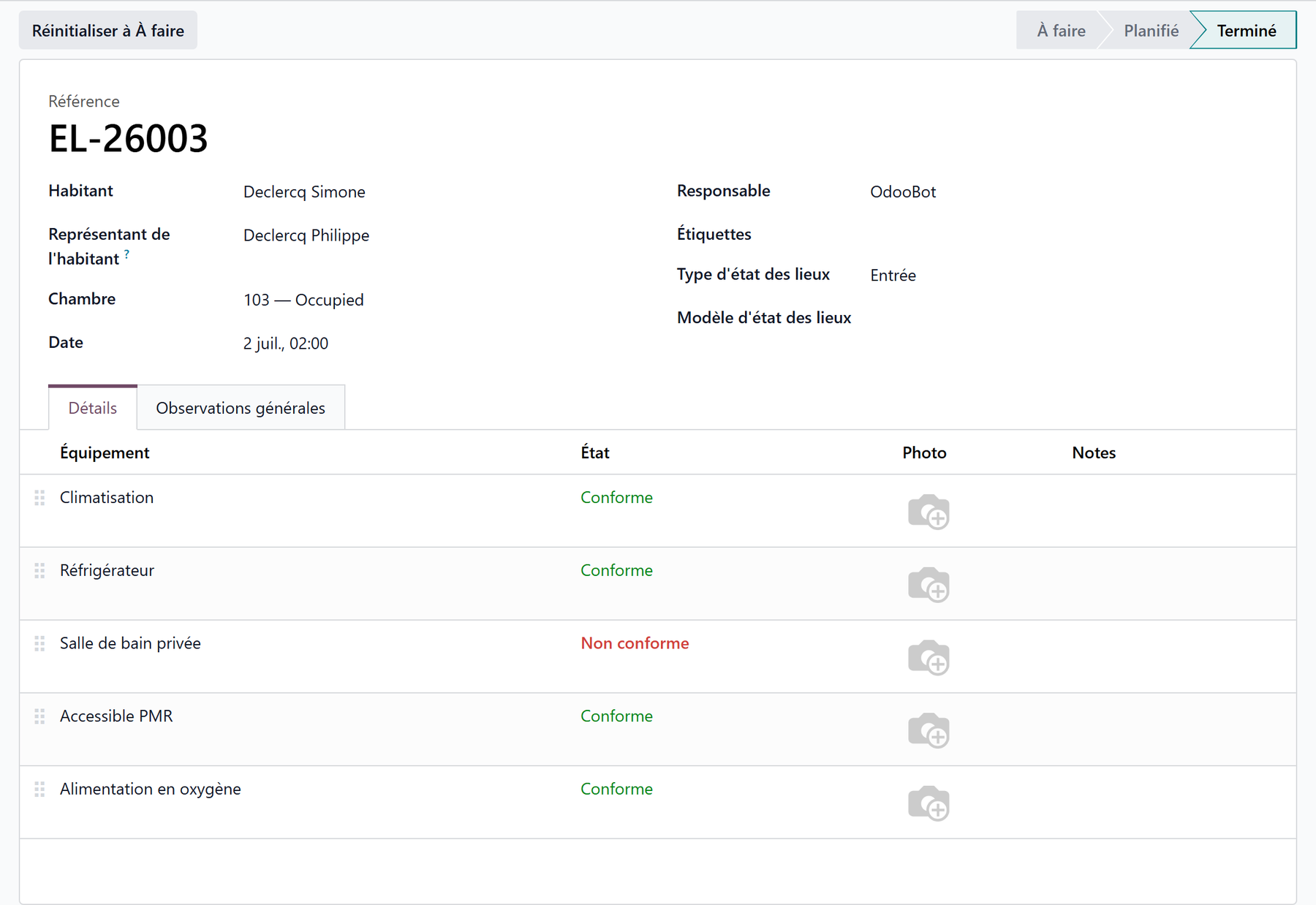
Each condition report links a resident, a room and a representative, lists the equipment assessed (compliant or not), and produces a PDF report on your letterhead, ready to sign.
graph LR
  A[To do] --> B[Planned]
  B --> C[Done]
  A --> C[Done]
An optional module
Condition reports are provided by a dedicated module. When it is installed, a Condition reports entry appears in the Accommodation menu, alongside Rooms and Stays.
1. Create the condition report
Open Accommodation ▸ Condition reports.
Click New.
Select the Resident.
Check the Date (today’s date by default) and the Person in charge (you by default).
Save: an automatic reference is assigned (prefix
EL-).
The resident, the room and the representative link themselves
As soon as you choose the resident, Resthome pre-fills:
the Room, taken from their current stay;
the Resident’s representative (the reference person who will sign), taken from their first family contact.
Both fields remain editable if needed.
2. Choose the type: move-in or move-out
Fill in the Condition report type field:
Move-in — the state of the room when the resident arrives.
Move-out — the state at the time of departure, to be compared with the move-in.
The type determines the badge shown on the PDF report (Move-in / Move-out).
Type not specified
If you do not choose a type, the report shows the Not specified badge. Fill in Move-in or Move-out for a clear document.
3. Fill in the detail lines
Open the Details tab. Each line describes an item of equipment and its condition. Three buttons are available at the bottom of the list:
Add a line — an item of equipment being assessed;
Add a section — a heading that groups lines (e.g. “Bedroom”, “Bathroom”, “Furniture”);
Add a note — a free-text line, in italics.
For an equipment line, fill in:
Field |
Purpose |
|---|---|
Equipment |
The item being assessed (required) |
Condition |
Compliant or Non-compliant (required) |
Photo |
A photo of the item (optional) |
Notes |
A free-text observation |
Equipment and condition are required
A detail line must always carry an item of equipment and a condition (Compliant / Non-compliant). Sections and notes, on the other hand, carry neither equipment nor condition: they are simple headings or remarks.
A second tab, General observations, lets you add free text about the overall condition of the room.
The equipment catalogue
The lines point to the facility’s equipment catalogue (“Room equipment”), shared with room management. There you define the bed, the wardrobe, the television, the bathroom, etc. once and for all. See Furniture and equipment.
Reusable templates
To avoid re-entering the same list every time, use a template.
Create your templates in Configuration ▸ Condition reports ▸ Condition report templates.
On a condition report, choose the Condition report template: its lines, sections and general observations pre-fill the document.
Like a quotation template
A template works like a quotation template: it sets up the structure (sections + equipment) that you then just have to assess and complete.
4. Track the lifecycle
A condition report goes through four statuses, shown in the status bar and as columns in the kanban view:
Status |
Meaning |
|---|---|
To do |
Created, assessment not yet carried out (initial status) |
Planned |
The assessment is planned |
Done |
The assessment is carried out and closed |
Cancelled |
The condition report is abandoned |
The buttons at the top of the form move the record forward:
Plan — moves from To do to Planned;
Mark as done — moves to Done;
Reset to To do — returns to To do from Done or Cancelled;
Cancel — switches to Cancelled.

5. Generate the signed PDF report
From a condition report, use Print ▸ Condition report. Resthome produces an
EDL_<reference>.pdf document in your facility’s house style.
The report includes:
your letterhead (logo, name, address, VAT) and your facility’s colour — set in Settings ▸ Configure document layout;
the title CONDITION REPORT with the Move-in badge (green) or Move-out (orange) depending on the type;
the metadata: resident, room, person in charge of the assessment, representative, date, tags;
the general observations, if you have entered any;
the detail of the items assessed (equipment, condition, photo, observation);
a summary: number of items, including compliant and non-compliant;
two joint signature boxes — The resident’s representative and For the facility — beneath the wording “Done at …, in two copies”;
a photographic appendix showing the photos in large format (4 per page).
Ready for electronic signature (Odoo Sign)
The report contains signature anchors that are invisible when printed, placed for the Odoo Sign app: when a signature request is created, the representative and facility fields land in the right place. The footer states compliance with the eIDAS Regulation (EU) No 910/2014. Using Odoo Sign is optional: otherwise, print the PDF and have it signed by hand.
Key points to remember
The condition report is a legally binding joint assessment: move-in then move-out, signed by the resident’s representative and the facility.
The resident, the room (taken from the stay) and the representative are pre-filled automatically.
Each line carries an item of equipment and a Compliant / Non-compliant condition, with a photo and an observation; sections and notes structure the list.
Templates save you from re-entering the same list; the equipment catalogue is shared with the rooms.
The PDF report is in your house style, with a Move-in/Move-out badge, summary, signatures and a photo appendix, ready for Odoo Sign (eIDAS).