Granting an access
Accesses live in Family Portal → Accesses. You can also grant one directly from the resident’s record, which shows the accesses in progress and the link to the family space.
1. Create the access
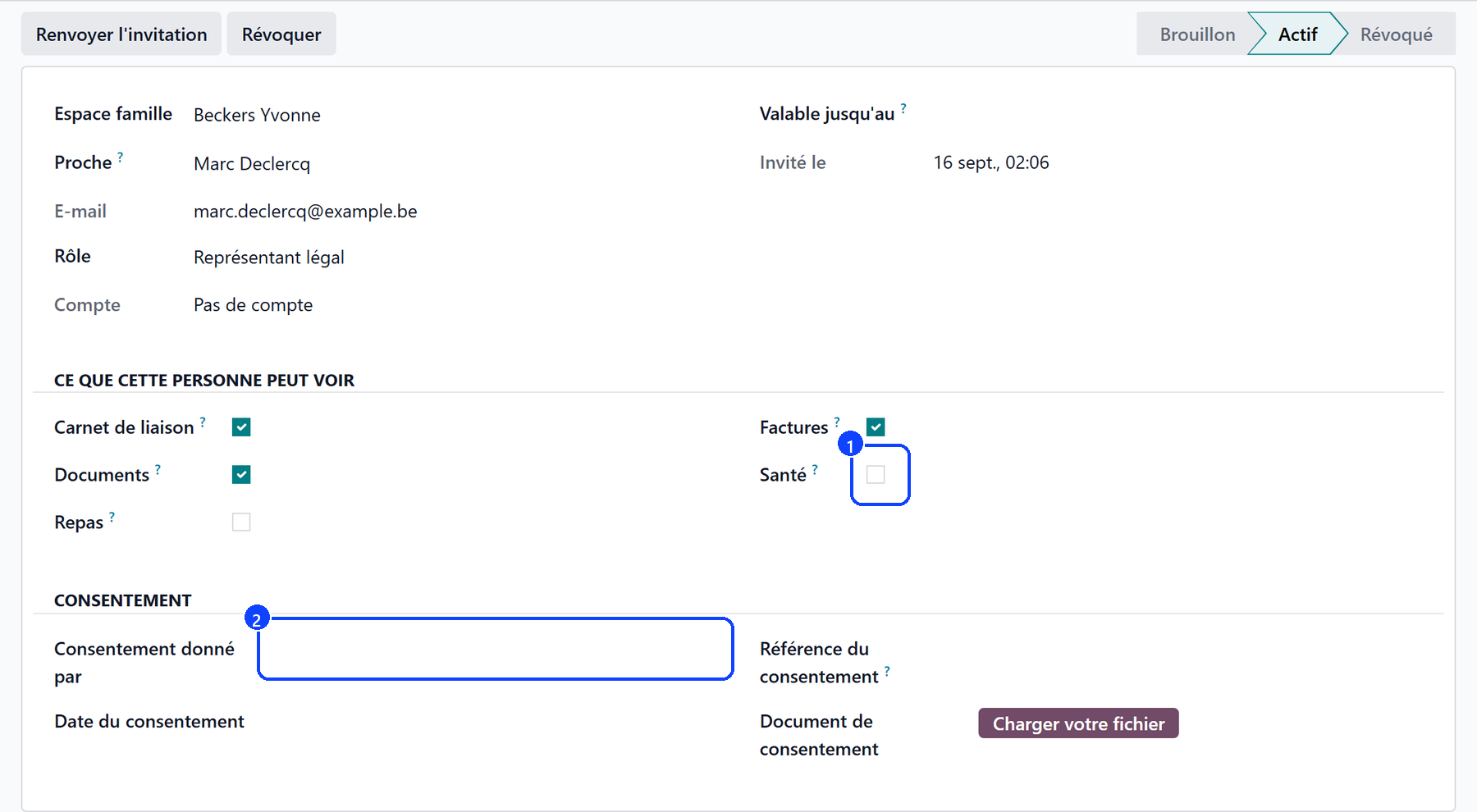
Choose the resident and the relative.
Set the role: Relative, Trusted Person or Legal Representative.
Tick what this person may see, under What This Person May See: Liaison Notebook, Documents, Meals, Invoices, Health.
Fill in Valid Until if the access is temporary.
Creating an access also adds the person to the resident’s family contacts — one gesture instead of two.
2. Record the consent, for health data
The Consent group asks for:
Consent Given By — the resident or the legal representative;
Consent Date;
Consent Reference and, if you have it, the signed document.
It is required as soon as Health is ticked: without it, Resthome refuses to save.
3. Invite
Click Invite. Resthome creates the portal account (login = the e-mail address), subscribes the person to the liaison notebook and sends them the invitation. Send Invitation Again sends it a second time.
The invitation is refused when:
the relative has no e-mail address;
the Valid Until date has already passed;
the address is already the login of another user.
The Account field then follows the person: No account, Invited, never signed in, Signed in.
4. Revoke
Revoke closes the access: the person no longer sees anything about the resident, and is unsubscribed from the notebook. The date is kept.
The account is not deleted
Revoking an access does not disable the person’s account: they may hold accesses to other residents, or their own invoices.
Who may do what
Care staff read the accesses.
The administrative team and managers create, invite and revoke.
Only management may delete.
In other words, a nurse can write in the notebook without being able to open an access to anybody.