Automatic centralization of attachments
In a nursing home, a single resident accumulates dozens of files: accommodation agreement, medical forms, health-insurance statements, GDPR consents… Without filing, these files end up scattered across message threads. Automatic centralization solves the problem: every attachment added to a resident’s record or message thread is copied into their personal folder in the Documents app, with the default tags applied.
You have nothing to do: filing is automatic and enabled by default. The configuration (activation, root folder, tags) is in Settings > Documents > File centralization, Nursing home block.
Prerequisites
This feature relies on Odoo’s Documents application: it is only available if Documents is installed. The residents root folder and each resident’s personal folder are created automatically — you have nothing to prepare.
How it works
As soon as a file is attached to a resident — whether as an attachment on a message in the thread or directly on their record — Resthome creates a corresponding entry in the Documents app, inside that resident’s folder.
graph LR
  A[Attachment on a resident's record<br/>or thread] --> B{Resident?<br/>Centralization on?}
  B -->|Yes| C[Entry created in<br/>the resident's Documents folder]
  C --> D[Default tags<br/>applied automatically]
  B -->|No| E[Nothing is filed]
Three conditions trigger the filing:
the record is indeed that of a resident (a person marked as a resident);
centralization is enabled for the facility;
the Documents app is installed.
If any one is missing, the attachment simply stays attached to the message or the record, with no copy in Documents.
What is NOT centralized
Centralization concerns residents only. Attachments added to an ordinary contact, a vendor or an employee are not copied into the Documents app.
Where documents end up
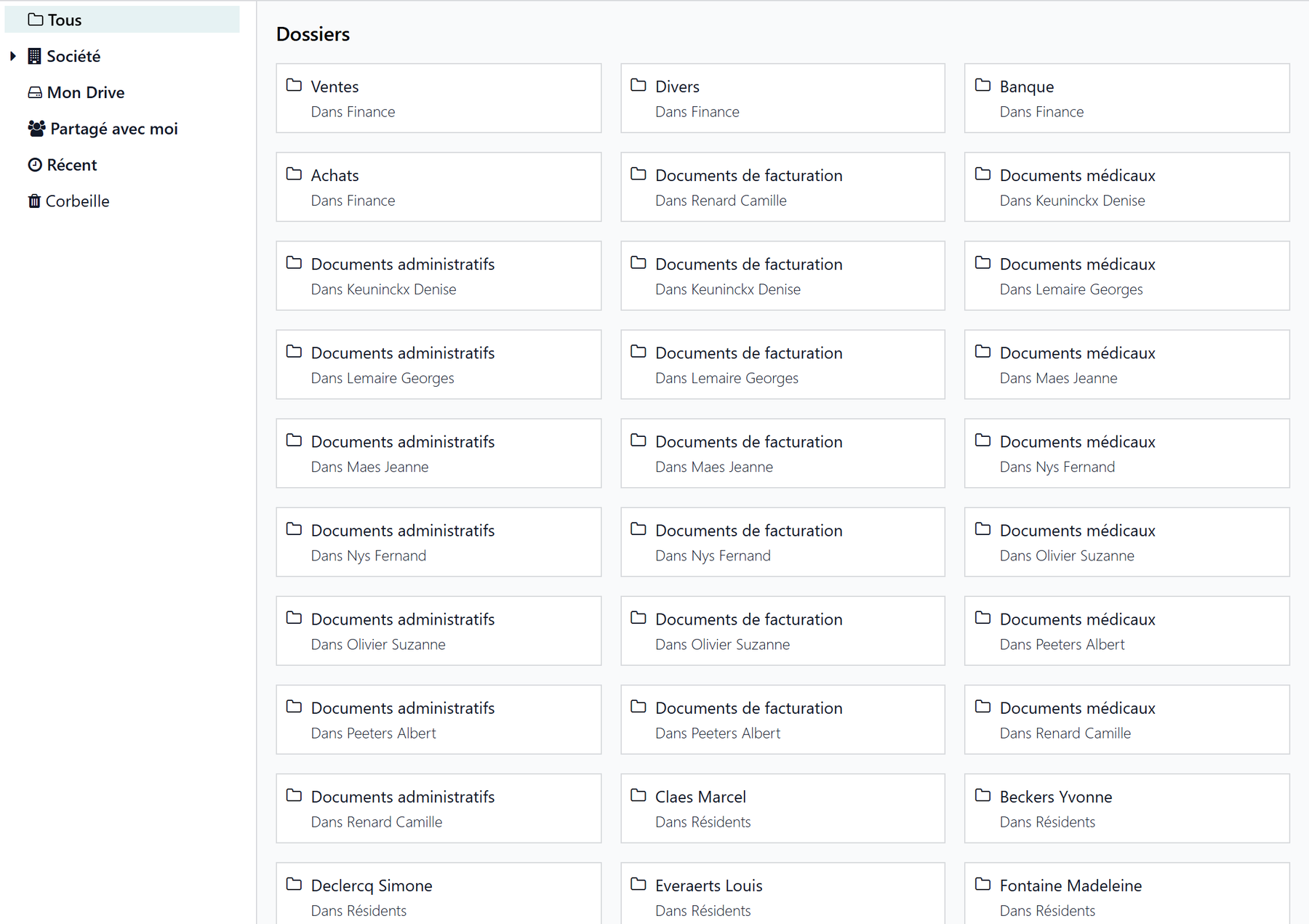
Every centralized document is filed in the resident’s personal folder, itself placed under the “Residents” root folder. On admission (or when the resident record is activated), this personal folder is created automatically, with three ready-to-use subfolders:
Medical documents
Administrative documents
Billing documents
The folder is named after the resident and renames itself automatically if the name changes.
The “Documents” button on the resident’s record
On a resident’s record, the Documents button (counter at the top of the record) opens their folder in the Documents app directly. The counter includes the files filed in the subfolders, not only at the folder root.
Default tags
To every centralized document, Resthome automatically applies the default tags chosen for the facility (Settings > Documents > File centralization > Default tags). This is what then lets you quickly filter and find documents in the Documents app.
Resthome already provides a list of ready-to-use tags tailored to the business:
Tag |
Typical use |
|---|---|
End of stay |
Discharge or death documents |
Stay agreement |
The agreement signed with the resident |
Medical form |
Medical forms and certificates |
Billing |
Statements and invoices |
GDPR consent |
GDPR consents and documents |
Other tags cover the documents that follow the country’s rules: dependency assessments, the health insurer’s agreements and letters, and the coverage granted by a public welfare body.
In Belgium
These tags are Katz evaluation, MR/MRS agreement (eAgreement), OA allocation and CPAS. See Care in Belgium.
Start light
The Default tags are optional. Leave the field empty to start, or put a single generic tag in it: you can always tag each document more precisely afterwards in the Documents app.
Who can see the documents
Centralized documents inherit the rights of the resident’s folder: only users with access to the Documents app can view them. They have no individual owner, which prevents a file from “belonging” to a single staff member and keeps the whole resident folder consistent and manageable by the team.
Segregated by facility
In multi-company, each facility has its own “Residents” root folder and its own centralization configuration. A resident’s documents therefore stay segregated within their company.
Enabling or disabling
Centralization is enabled by default. You control it with the Nursing home block in Settings > Documents > File centralization:
checking the block enables automatic filing;
unchecking the block stops centralization of future attachments — documents already filed stay in place, nothing is deleted or moved.
The details of the three settings (activation, root folder, default tags) are described on the Document settings page.
Key takeaways
Every attachment added to a resident’s message thread or record is automatically copied into their Documents folder.
Filing concerns residents only — not contacts, vendors or employees.
The facility’s default tags are applied automatically to every centralized document.
The resident’s personal folder (and its subfolders) is created automatically; the Documents button on the record opens it directly.
Centralization is enabled by default and is disabled by unchecking the Nursing home block — documents already filed stay in place.
The setting and root folder are specific to each facility.