Care tasks
A care task is one care, for one resident, at one moment. Care tasks are the work of the care staff, in the Care Tasks app.
Find your work
Care Tasks → Care Tasks → Today’s Care — today’s care, as cards, sorted by room for the round.
Care Tasks → Care Tasks → My Assigned Care — the care assigned to you, still to do.
Care Tasks → Care Tasks → My Care Plans — the plans you coordinate.
Care Tasks → Care Tasks → My Objectives — the objectives assigned to you.
Care Tasks → Care Tasks → To Assign — today’s care with nobody assigned yet.
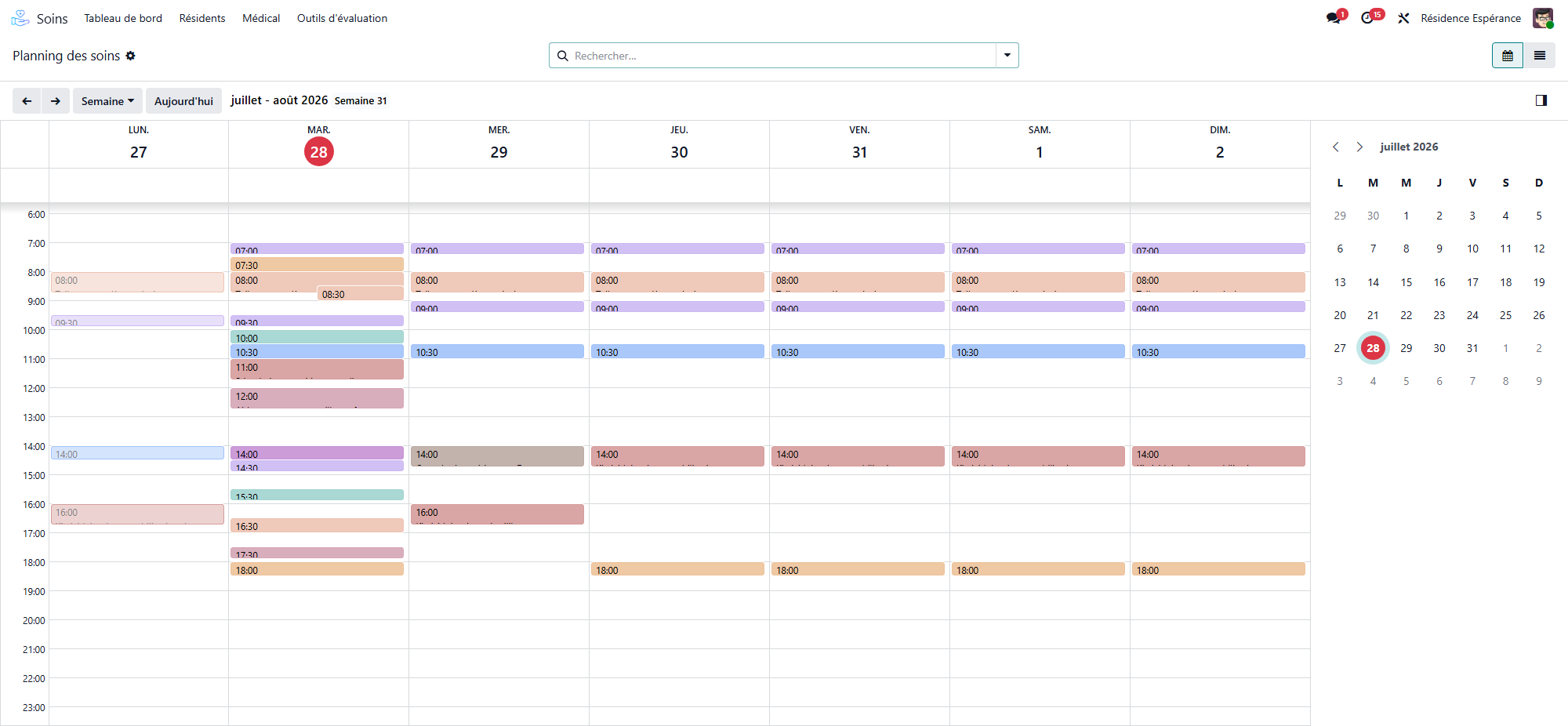
Care Tasks → Care Tasks → Care Schedule — the calendar of care.
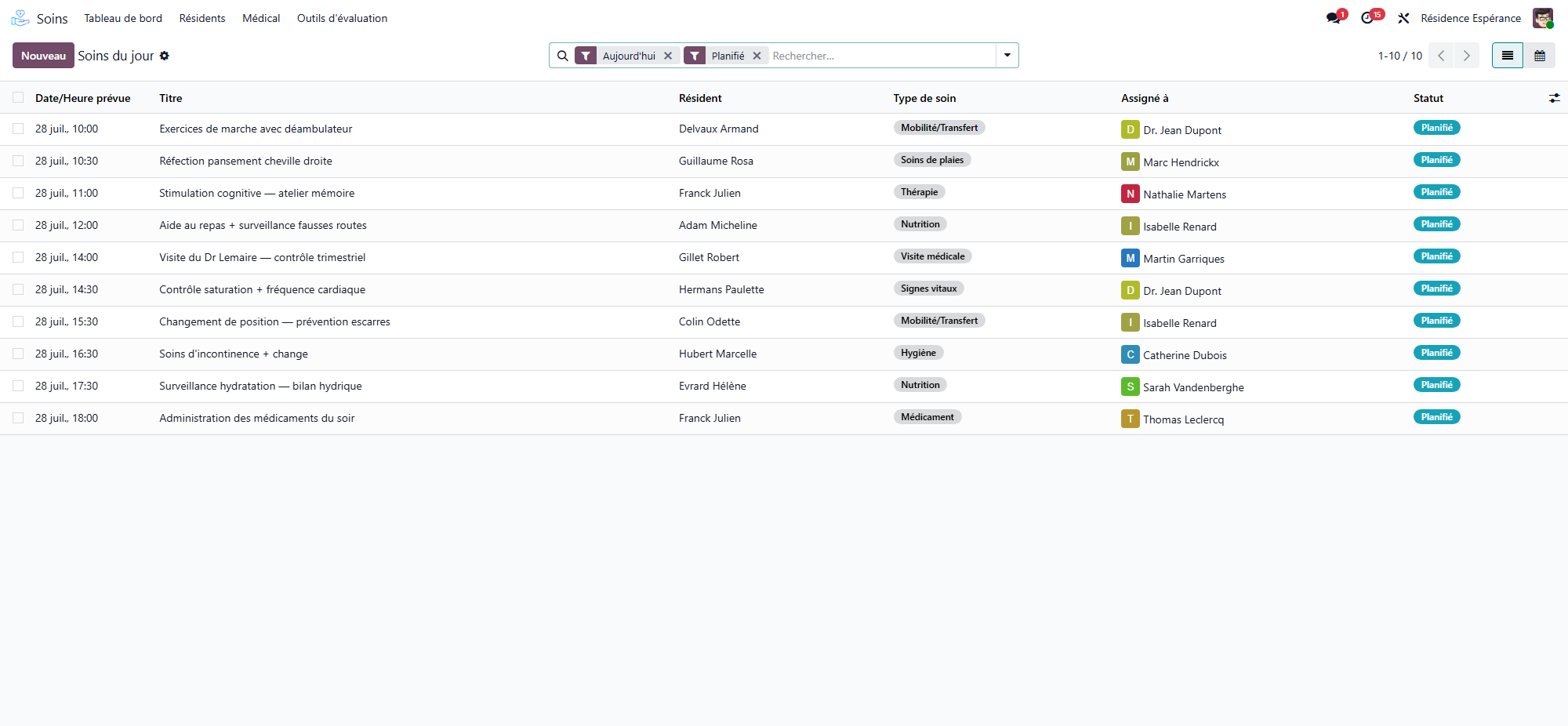
Each card shows the resident, the room, the care, the moment of the day or the hour, the criticality and the status.
The statuses of a care task
Status |
Meaning |
|---|---|
Planned |
To do |
In progress |
Started |
Completed |
Given |
Not done |
Not given, with a reason |
Postponed |
Moved to another moment or day |
Missed |
Nobody answered in time |
Cancelled |
Cancelled, for example because the resident was away |
1. Give the care
Open the care task.
Read the Care description: what the plan asks for this care.
Click Start if the care takes time, then Mark as Done.
When the care asks for a record — a weighing, a scale, the stools — click Fill in: the form opens with the resident already set, and the record is linked to the care.
Your name and the time are recorded under Completion. The Observation button writes an observation linked to the care.
Nutrition care and devices
A Nutrition care shows the resident’s devices (urinary catheter, stoma, gastric tube) in a Devices field: the way the meal is given depends on it.
For a stools or urine care, Record the observation opens the follow-up directly. See Stools and urine.
2. Not done or postponed
Click Not Done or Postpone. One sheet handles both:
Answer — Not done or Postpone.
For a postponement: Postpone To (the date), then a Moment of the Day or, with At a Precise Time, an hour — midnight included. A care can be postponed to later the same day.
Reason — required; some reasons also require a Comment.
A postponed care shows Postponed to on the original and Postponed from on the new one. When a care is still owed, Still owed until tells until when.
3. Countersign
Some care must be checked by a second person. A colleague other than the one who gave the care clicks Validate: their name and the date are recorded under Completion.
4. Missed care
A care nobody answered for becomes Missed two hours after the end of its moment of the day, or two hours after its planned hour. Mark Missed does it by hand. Missed care shows on the plan (Missed care) and in the multidisciplinary meeting.
5. Add a care on the spot
Click New, pick the resident and the care, and save. The care is marked Added on the Spot. To make it a recurring care, open the Options tab: Recurring, Frequency, Weekdays, Moments, Hour and Until.
6. Stop a care from the task
Stop this care stops the whole series behind the task: the occurrences still planned are cancelled, care already given or missed is kept. The Options tab also offers Suspend this care and Resume this care.
The care task form
Smart buttons: Care Schedule, Care Plan Line, Occurrences, Care Plan, Filled in and Observations.
Fields: the care, the Resident, the room and the sector, the Care Type and Activity, To Fill, Criticality, Objective, Starting at, Duration and the moment of the day. Under Outcome: the reason and the comment of a care not done or postponed. Under Completion: who did it and when, and who validated it.
The care schedule
Care Schedule shows the care on a calendar, clickable by quarter hour. Dragging a recurring care asks Move a recurring care: The whole series or This care only.
Search and group
Filters: Today, This Week, Upcoming, To Do, Planned, In Progress, Completed, Not Done, Missed, Postponed, Carried Over, Added on the Spot, My Assigned Care, and by kind: Vital Signs, Wound Care, Medication, Doctor Visits.
Group by resident, care type, status, reason, criticality, assignee, date, month, moment of the day or department.
Assigning care
A care task can be assigned to a member of staff in the Options tab (Assigned to). The house can let WideCare share the care among the staff on the planning: see Automatic assignment of care tasks.
Outcome reasons
The reasons offered for a care not done or postponed are listed under Care Tasks → Configuration → Care Outcome Reasons: Refused by the resident, Resident asleep, Resident absent / not in the room, Resident unwell, Not enough time / staff shortage, Not needed today, Equipment or product missing, Family visit / outing, Other. Each says whether it is Used For not done, postponed or both, and whether it Requires a Comment.